
How to access Employees
Find it under Employees in the main navigation.

| ℹ️ The new Employees page is rolling out gradually. If you don't see it yet, access will appear automatically as the rollout reaches your account. |
Opening an employee record
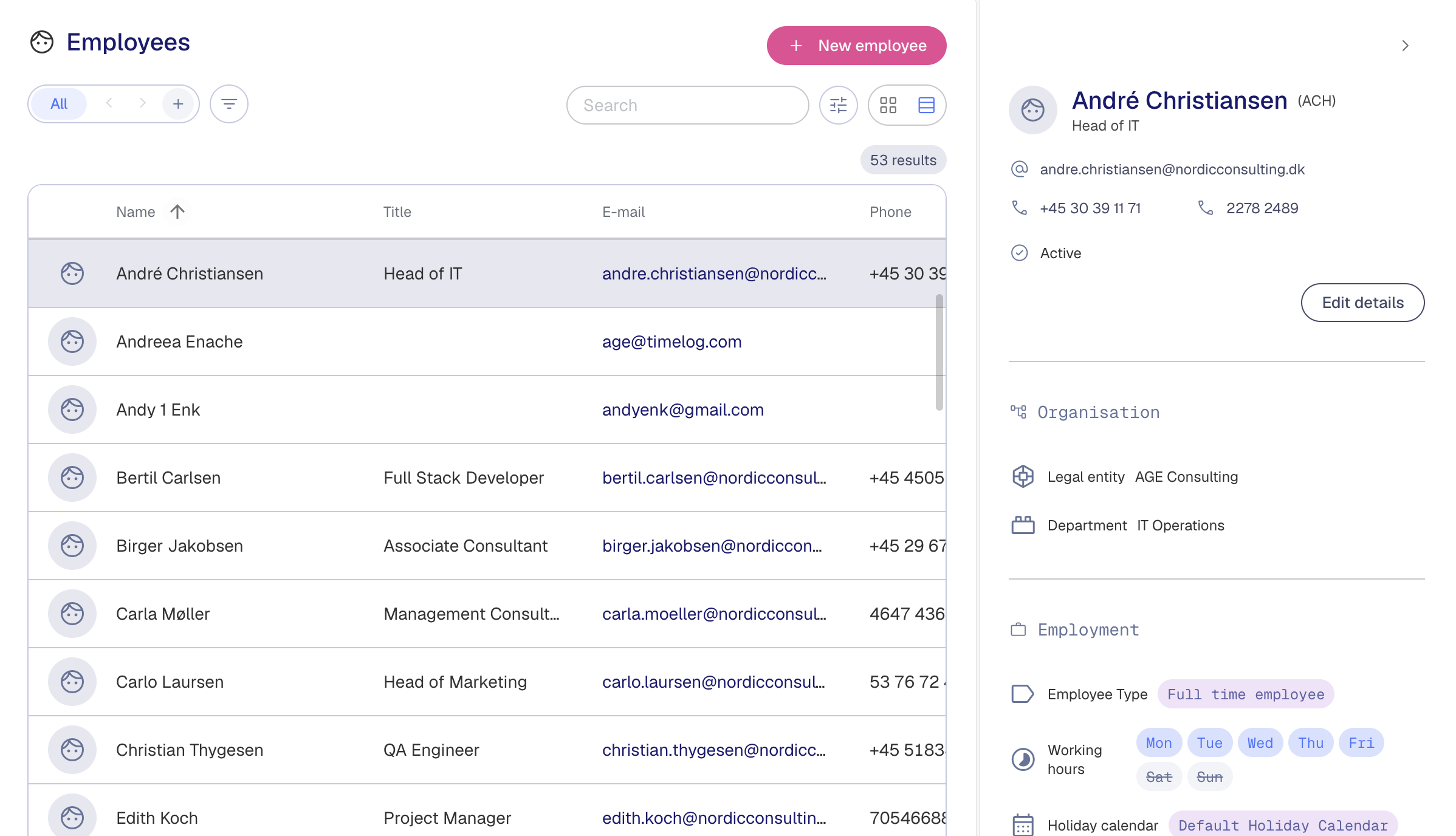
Click any row to open the employee side panel on the right. The panel is organised into sections:
|
Section |
What you'll find |
|
General |
Email address, phone numbers, address, and status |
|
Organisation |
Legal entity, department, and manager. |
|
Employment |
Employee type, working hours, holiday calendar, and seniority. |
|
Competencies |
Skill and competency ratings. Visible only if your organisation uses the Resource Planner. |
ℹ️ If an employee is absent today, their expected return date is shown at the top of the panel — so you always know when to expect them back.
Creating a Custom View
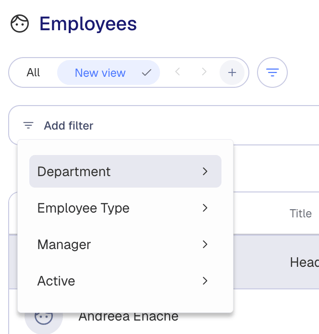
- Under Employees page title, you find the Custom Views bar.
- Click + sign to add a new View.
- Choose your filters and groupings:
- Status (Active / Inactive)
- Department
- Employee type
- Manager
- Give the view a name and click the check mark to save.
Sharing a View with your team
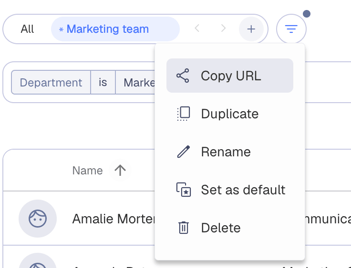
When saving a view, you can share it with your team to make it visible to everyone in your organisation. To share a view, you click the kebab menu that comes up on hover on the view name -> click "Copy URL" and share through email, in a Teams channel or however you like. Shared views appear in the Views list for all users — no need for each person to configure their own filters.
Editing or deleting a View
- Hover over a view and click the three-dot menu next to the view.
- Select Duplicate, to clone a view to filter it further. Click the check mark to save it.
- Select Rename, to change a view’s name.
- Select Set as default, to have a view shown first after All.
- Select Delete to remove the view.
Good to know
- The Employees page replaces the previous Employee overview — all your data is still there, just in a refreshed layout.
- Competencies are only visible if your organisation uses the Resource Planner.
- Employee details are read-only in the side panel — click Edit details at the top of the panel to make changes.
- The Employees page shows all employees you have access to based on your role and permissions.
ℹ️ Only the person who created a shared view can edit or delete it.