
| ℹ️ Project Portfolio is rolling out to all PSA plans. If you don't see it in your Projects menu yet, access will appear automatically as the rollout reaches your account. |
How to access Project Portfolio
In the main navigation, click Projects → Portfolio. You'll land an overview of every project you have access to.
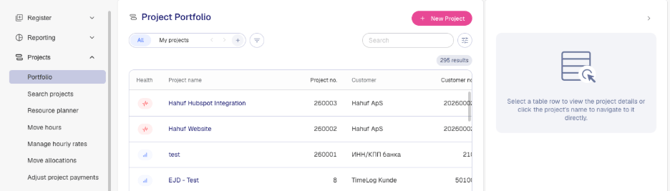
Understanding health status
Each project in the list displays a health indicator in the Health column:
- On track — The project is within budget and progressing as expected
- At risk — A project worth a closer look: showing signals of budget overrun or lagging task completion
Health status is a directional signal, not a final verdict. It's calculated automatically from two data points: budget consumption (measured at task level, so underlying overruns surface early) and task completion rate. It updates automatically as hours are logged or budgets are changed.
| ℹ️ TimeLog measures budget at task level — not just project total. This means Portfolio can flag a task quietly consuming more hours than planned before it rolls up into a visible total overrun. The earlier you see it, the more options you have. |


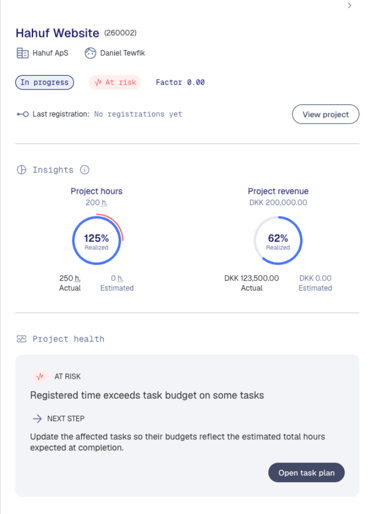
The Insights & Project health panel
Click any project row to open the side panel on the right. The panel shows:
- Key insights — the specific signals (budget, tasks) driving the current health status
- Recommended actions — concrete next steps to address issues on at-risk projects
The panel updates automatically. If you adjust a budget or a team member logs hours, the insights and status reflect those changes.
To close the panel, click on the top right arrow to collapse or click on another project row to get insights and project health recommendations on another project.
Where the data comes from
You can find the Insights numbers in Project Totals. To update the data feeding the Insights:
-
Project hours is taken from Budgets > Project > Work (hours) and Project Revenue is taken from Budgets > Project > Work (currency).
-
Actual (hours) comes from Realized > Actual > Work (hours), and Estimated Revenue comes from Realized > Estimated > Work (currency).
-
Planned (hours) and Planned Revenue come from Resource Planner.

Project Search and Custom Views
Use the Search field in the top-right to find a specific project by name or number. Use the filter icon to narrow results by project, status, customer, or other criteria. Create and save Custom Views based on preferred filtering. Share them with colleagues.

- Health status is a directional signal — it is calculated by TimeLog and cannot be set manually
- Project Portfolio shows all projects you have access to based on your role and privileges
- The Insights & Project health panel does not replace your full project view — click "View project" within the panel to open the full project details