
Deciding between Expense overview and Print personal expenses reports
- Use Expense overview when you need a general overview of expenses across employees, projects and customers.
- Use Print personal expenses when you need a full, printable overview of all expenses for a single employee.
Which report should I use?
Use the checklist below to decide.
| If you need to… | Use this report |
|---|---|
| See all expenses across many employees | Expense overview |
| Analyse expenses across projects and customers | Expense overview |
| Export expenses to Excel or text file for further analysis | Expense overview |
| See mileage, allowances, accommodation, specified | Print personal expenses (the Expense overview just shows "expenses") |
| Review all expenses for yourself or a single employee | Print personal expenses |
| Understand the outstanding reimbursement that is due to me | Print personal expenses |
| Separate expenses by expense, mileage, allowances, accommodation, specified | Print personal expenses |
| Get a printable report with a signature section | Print personal expenses |
Print personal expenses report
Create and use the Print personal expenses report
- Finding the report
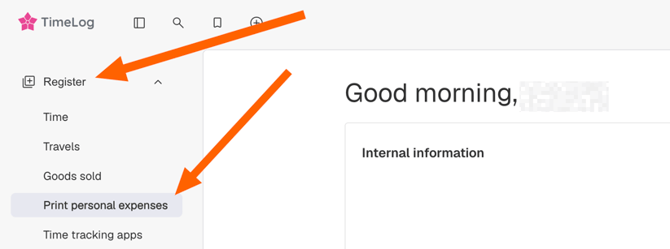
- Option 1: Register: in TimeLog's navigation go to "Register" click "Print personal expenses"
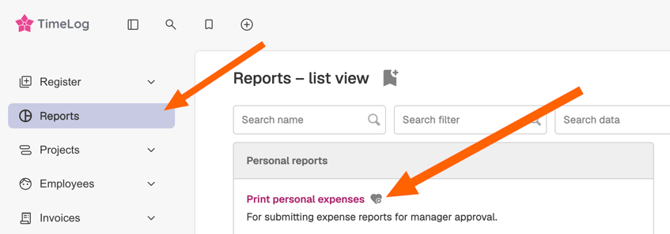
- Option 2: Reports: In TimeLog's navigation go to "Reports" and find "Print Personal Expenses"
- Option 1: Register: in TimeLog's navigation go to "Register" click "Print personal expenses"
- Set the report filters
Use the filters to narrow down which expenses you want to see.
Filter Description Employee Select the employee whose personal expenses you want to print. (The default will be you) Customer Limit expenses to a specific customer. Project Limit expenses to a specific project. Expense type Filter by type of expense. Payment method Filter by how the expense was paid. Approval Status Filter by approval status. Control Filter by control status. Payment Filter by payment status. Standard period Quickly select a period (MTD, YTD, This week, Last week, This month, Last month, This year, Last year). Period (From–To) Define a custom date range for the report. 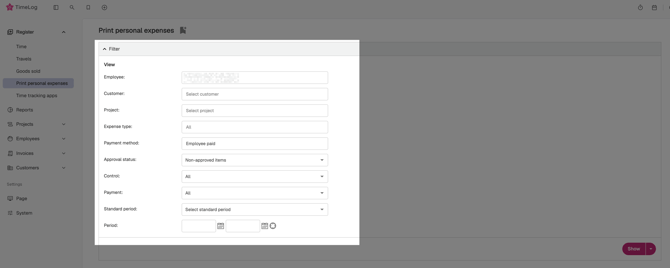
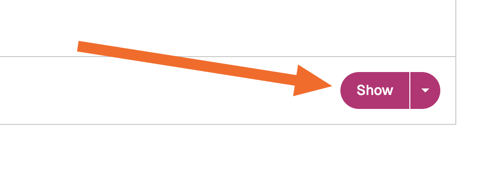
- Press "Show" to see the results
Understanding the results
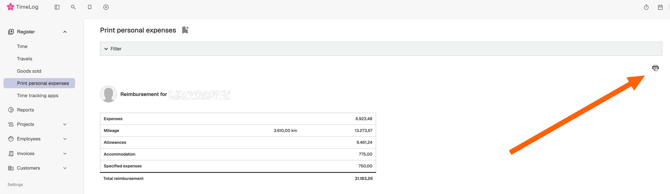
The Print personal expenses report shows multiple tables, typically grouped by:
- Expense
- Mileage
- Allowances
- Accommodation
- Specified expenses
Each table includes a core set of columns, with additional columns for specific types (for example, mileage):
| Column | Description |
|---|---|
| Date | Date of the expense. |
| Expense # | Unique expense number. |
| Comment | Any comment added to the expense. |
| Expense Type | Category/type of the expense. |
| Project Name | Name of the related project. |
| Reimbursable | Indicates if the expense is reimbursable. |
| Destination | Destination (for example, mileage trips). |
| Purchase Price | Purchase price related to the expense. |
| Amount | Expense amount. |
| Approval Status | Current approval status. |
At the bottom of the report, there is a signature section for manual sign-off.
Print the Print personal expenses report
-
After pressing "Show" and seeing results, you will see a print icon on the top right
-
Click that and a printable version of the expense report will be available in your default print options flow of the browser
Expense Overview report
Create and use the Expense overview report
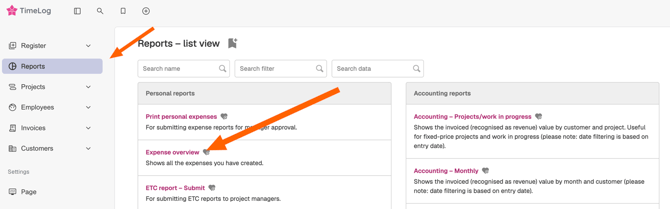
- In TimeLog's navigation go to "Reports"
- Find or search for "Expense Overview" and click it
- Set the report filters
Use the filters to narrow down which expenses you want to see.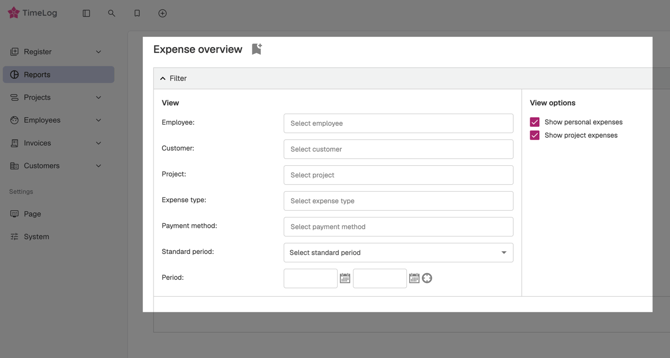
Filter Description Employee Show expenses for one or more employees. Customer Limit expenses to a specific customer. Project Limit expenses to a specific project. Expense type Filter by type of expense. Payment method Filter by how the expense was paid. Standard period Quickly select a period (MTD, YTD, This week, Last week, This month, Last month, This year, Last year). Period (From–To) Define a custom date range for the report. - Set the View Options
Decide which types of expenses you want to include:
- Check Show personal expenses if you want to include personal expenses.
- Check Show project expenses if you want to include project expenses.
Refresh/update the report if required by your system.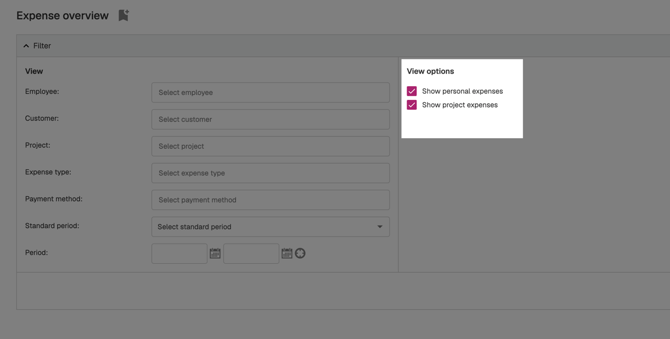
- Press Show to see the results which should include one table that includes the following columns
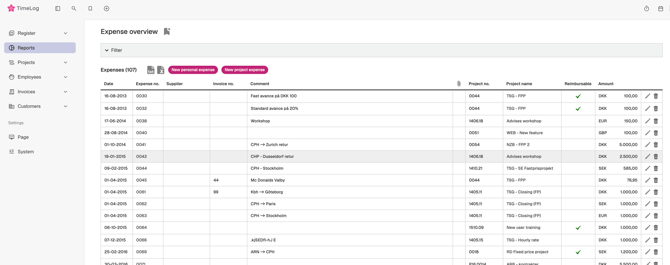
| Column | Description |
|---|---|
| Date | Date of the expense. |
| Expense # | Unique expense number. |
| Supplier | Supplier related to the expense. |
| Invoice # | Invoice number, if available. |
| Comment | Any comment added to the expense. |
| Attachment | Indicator/link to attached documents. |
| Project no. | Project number connected to the expense. |
| Project name | Name of the related project. |
| Reimbursable | Indicates if the expense is reimbursable. |
| Amount | Expense amount. |
Export the Expense overview report
You can export the report for further analysis or sharing
- Find the export options at the top of the table
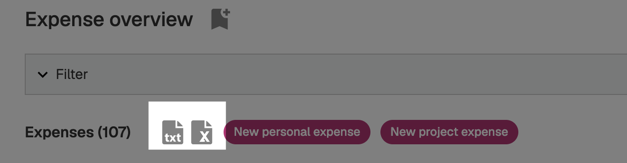
- Choose your preferred format:
- Text file (txt)
- Excel file (xls)
- Click the icon and the file will be saved to your browser's download folder