
How to access Suppliers
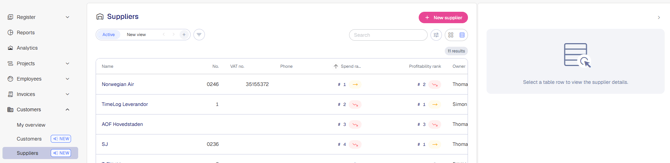
In the main navigation, click Customers → Suppliers. You'll land on an overview of every supplier you have access to.
Understanding spend and profitability ranking
Two columns rank suppliers relative to each other:
- Spend rank — where a supplier ranks based on total spend over the last 12 months. A trend arrow indicates whether the supplier is moving up, holding steady, or moving down compared to 30 days ago.
- Profitability rank — where a supplier ranks based on profitability over the last 12 months, with the same trend indicator.
A dash (–) means there is not enough data in the period to calculate a ranking.
Spend rank is based on the cost of expenses recorded for the supplier.
Profitability is calculated as revenue divided by cost of expenses for the supplier.
Rankings are recalculated once a day. "Holding steady" simply means the rank hasn't changed since the last recalculation — it isn't a separate performance measure.
The Supplier insights panel
Click any supplier row to open the side panel on the right. The panel shows:
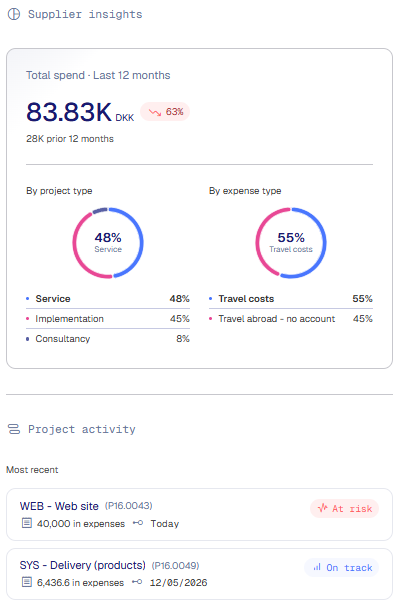
- Supplier insights — total cost over the last 12 months, compared to the prior 12 months, broken down by the dimensions expense type and project type.
- Spend ranking — the supplier's position over the last 12 months.
- Project activity — the projects with expense recorded for the supplier, sorted by most recent activity.
The panel updates automatically as expenses are logged, invoices are issued, or budgets change.
To close the panel, click the top-right arrow to collapse it, or click another supplier row to see insights for another supplier.
Supplier Search and Custom Views
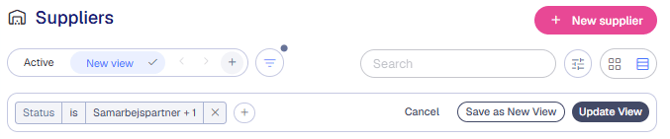
Use the Search field in the top-right to find a specific supplier by name. Use the filter icon to narrow results by owner, country, or other criteria. Create and save Custom Views based on your preferred filtering, and share them with colleagues.
Updating multiple suppliers at once
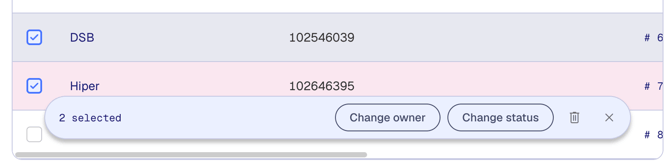
Select the checkboxes next to any supplier rows — or the checkbox in the header to select all — to open a toolbar at the bottom of the list. From there you can:
- Change owner — reassign the owner across all selected suppliers at once.
- Change status — move a batch of suppliers between statuses in a single action.
- Delete — remove multiple suppliers at once.
Click the X in the toolbar to clear your selection.
Note: Bulk actions apply immediately and cannot be undone. Double-check your selection before applying a change, especially before deleting.
Good to know
- Suppliers shows all suppliers you have access to based on your role and privileges.
- The Supplier insights panel does not replace the full supplier record — click the supplier name to open full details.
- Suppliers are created as customers with a Customer status indicating it as "Supplier".