
Introducing Our New Global Semantic Search
We are pleased to present the first edition of our Global Search, powered by semantic technology! This innovation represents a significant enhancement in the way you locate essential information in TimeLog, making the process both faster and more intuitive.
What’s the difference?
Our new search doesn’t just look for keywords—it understands meaning. This means more relevant results and a smoother experience when searching across key entities in the system:
- Projects
- Customers
- Contacts
- Employees
- Invoices
What is the value?
Semantic search helps you:
- Find results faster by understanding the intent behind your query.
- Reduce guesswork—no need to remember exact names or phrases.
- Work smarter with a search that feels intuitive and powerful.
Do I have access to the new search function?
If your menu is on the left side, your site is on the new TimeLog PSA platform and you don’t need to do anything to enable the new search—it’s already enabled!
If you are on our classic platform and interested in hearing more, please do not hesitate to contact us through your Customer Success Manager or Support@timelog.com
How the New Global Search Works
The new Semantic Search replaces the old Super Search and brings a smarter, faster way to find what you need.
How to Open Search
- Click the search icon in the menu bar
or - Use the keyboard shortcut:
- Ctrl + K (Windows)
- ⌘ + K (Mac)
When you open the search:
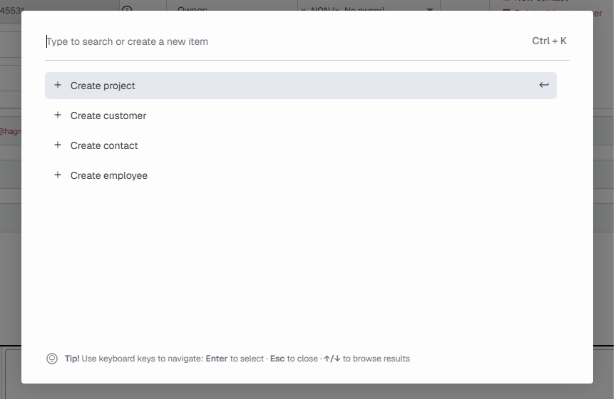
- The search panel appears as an overlay on your current screen.
- Your cursor is placed directly in the search field—just start typing!
Quick Actions
If you have permission, you’ll see options to create new Projects, Customers, Contacts, or Employees—no need to click the “plus” icon first.
If you don’t have permission for some or all of these actions, those options will simply be hidden.
The Power of Semantic Search
Our new search isn’t just fast—it’s smart. Instead of matching exact words, it understands meaning and intent. This means:
- No need to be perfect: Misspellings? No problem.
- Order doesn’t matter: Words can be in any order and still return relevant results.
- Smarter suggestions: Each word is evaluated separately, so you get the best match even if your query isn’t precise.
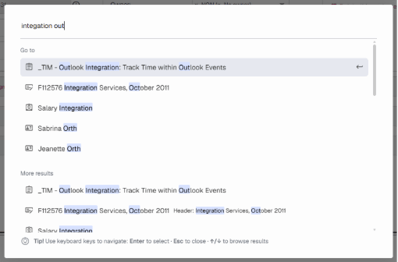
Example: Searching for “integation out” (misspelled missing an r) will still suggest Outlook Integration Project as the top result.
Matched words are highlighted in the results so you can see why they’re relevant.
Keyboard-Only Navigation
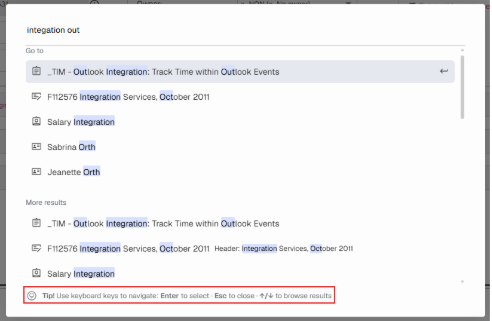
Prefer the keyboard? You can complete your entire search without touching the mouse:
- Type to search (cursor is ready in the field).
- Use ↑ and ↓ arrows to navigate results.
- Press Enter (↵) to open a result.
- Change your search anytime—just keep typing.
- Close the search with Esc or by clicking outside the overlay.
Pro Tip: Open a result in a new tab with Ctrl + Enter.
What Can You Search For?
In this first release, you can search across:
- Projects (excluding archived or cancelled)
- Customers (active customers)
- Contacts (active only)
- Employees (current or future)
- Invoices (all)
Grouped Results
Results are organized into two groups:
- Go To: Top 5 matches based on primary fields (usually name and number).
- More Results: Top 30 results of broader matches across additional properties and relationships (e.g., job title, employee type, project manager name).
A result can appear in both groups—this simply means it’s highly relevant
Complete search property list
Here is the complete list of current search properties…
Project
Go to
- Name
- Number
More results (Go to +)
- PO number
- Project Manager name
- Partner name
- Account Manager name
- Customer name
- Customer number
Customer
Go to
- Name
- Number
More results (Go to +)
- Nickname
- VAT number
- Organization number
- Owner name
- Secondary owner name
- Phone
Invoice
Go to
- Number
More results (Go to +)
- PO number
- Header
- Customer name
- Customer number
- Project name
- Project number
- Customer VAT number
Employee
Go to
- Full name
- Initials
More results (Go to +)
- First name
- Last Name
- Employee ID
- Job title
- Employee Type
- Mobile Phone
- Private Phone
- Competencies
Contact
Go to
- Full name
More results (Go to +)
- First name
- Last name
- Customer name
- Job title
- Owner name
- Phone
- Mobile Phone
- Home Phone