
This article is for registering a personal expense. If you are looking for project expenses, please visit the "How do I add or register a project expense?" article.
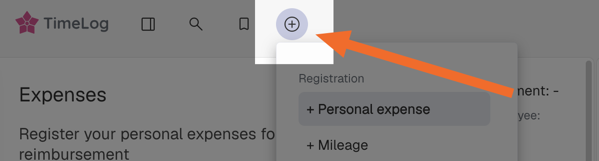
- Click on the plus symbol in the shortcut bar to create a new expense.
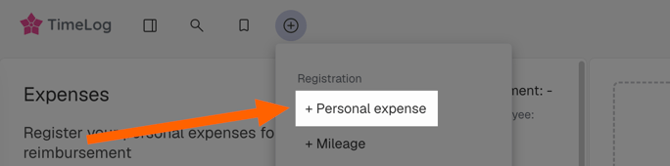
- Select "+ Personal Expense"
Expense Details
Provide the following information for each expense. Make sure all required fields (marked with a *) are completed.
-
Date of expense *
Select the date the expense was incurred, as shown on the receipt or invoice. -
Supplier
Enter the name of the vendor or supplier (e.g. hotel, airline, restaurant). This helps your finance team know track spending by supplier. -
Payment method *
Choose how the expense was paid (e.g. company card, personal card, cash). This is important for correct reimbursement and accounting. -
Amount incl. VAT *
Enter the total amount including VAT. This should match the amount shown on the receipt, invoice, or other documentation for the expense. -
Currency *
Select the currency used at the time of purchase. Use the currency that appears on the receipt or invoice. -
VAT amount *
This field is normally calculated automatically based on your organization’s VAT settings. Verify that the calculated amount matches the documentation. If your organization allows it, you can adjust it if needed. -
Expense Type *
Choose the category that best describes the expense (e.g. travel, accommodation, meals, software, office supplies). Correct categorisation supports accurate reporting and project profitability analysis. -
Billable
Select this option if the expense should be invoiced to a customer or client. Billable expenses will be available for inclusion on project invoicing. -
Comment
Add a short note if relevant for your organization (e.g. “Client meeting in Stockholm”, “Taxi from airport to customer office”). This can help approvers and finance understand the context.
Project Information
Link the expense to the right project and employee to ensure correct reporting and invoicing:
-
Employee *
This will default to you. Change it only if you are registering an expense on behalf of another employee (according to your internal processes). -
Customer
Select the customer related to the expense, if applicable. This is recommended for billable expenses. -
Project *
Choose the project to which the expense should be allocated. This ensures the amount is included in project cost and margin calculations. -
Contract (if applicable)
If the project has multiple contracts or agreements, select the relevant contract so the expense is handled correctly for invoicing and reporting.
Attaching a receipt or invoice
Attach documentation so the expense can be approved and, if relevant, audited:
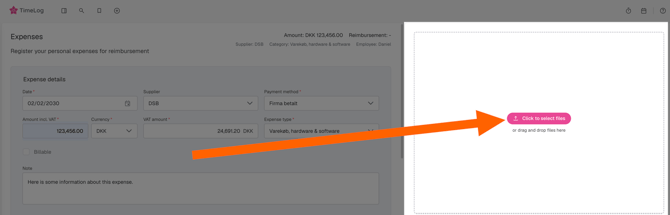
- Drag and drop the file into the right sidebar
OR - Click "Click to select files" and upload from your device.
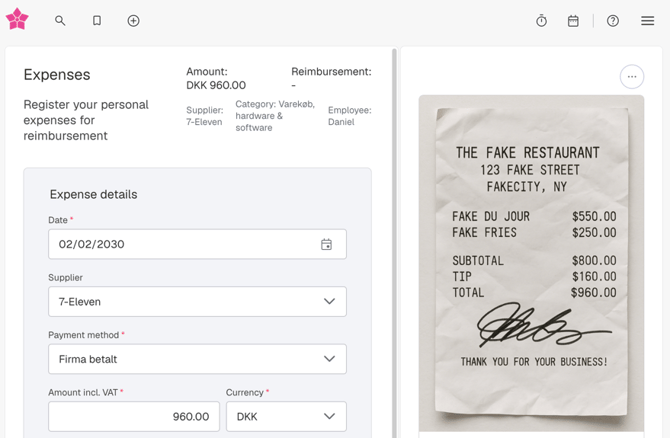
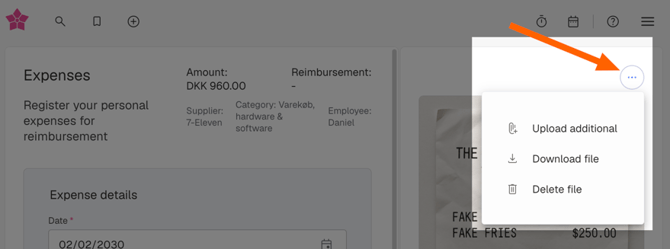
For additional file options, click the "..." button in the top right. From here you can:
- Upload additional receipts or invoices
- Download the original file
- Delete the file if you uploaded the wrong document
Make sure the uploaded file is readable and clearly shows date, amount, VAT and supplier.
Saving the expense
- Click "Save" when you are done creating the expense.
- Click "Save & new" if you want to immediately register another expense.
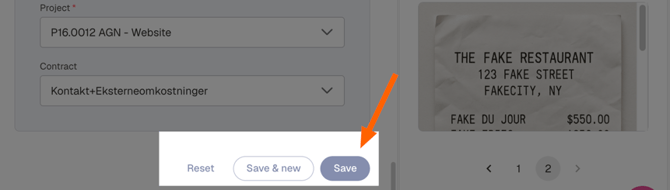
If you need to start over at any time, you can reset the form and enter the information again from the beginning.
An expense is uneditable after it's been:
- approved
- added to an invoice draft
- or invoiced to a customer
If the expense occurred in a closed accounting period, it will be locked for editing.
Editing an expense
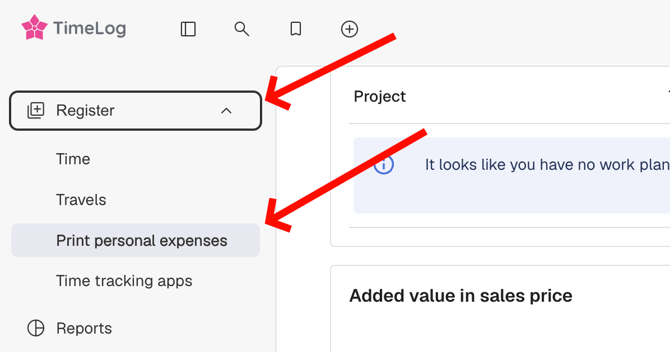
- In the navigation, click "Register", and "Print Personal Expenses"
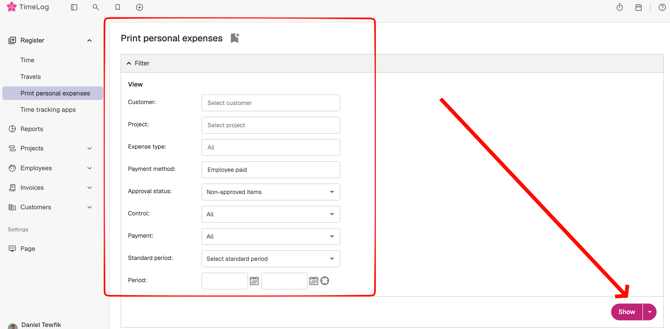
- Make any adjustments to the search filters and then hit "show"
- Click on the pencil icon next to an expense
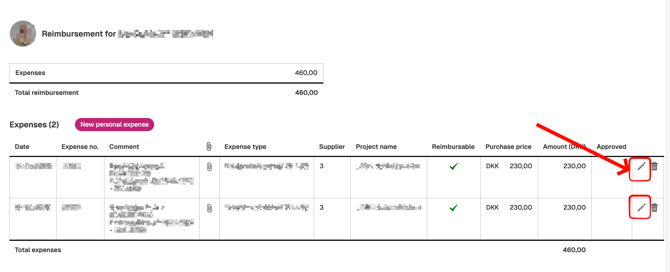
- Now you can make any adjustments to the expense as you see fit